



 Chat with AI
Exam 18: Outlook Lesson 3: Working With Other Outlook Tools

Exam 1: Access Lesson 1: Microsoft Access Basics46 Questions
Exam 2: Access Lesson 2: Creating a Database46 Questions
Exam 3: Access Lesson 3: Creating Queries46 Questions
Exam 4: Access Lesson 4: Creating and Modifying Forms46 Questions
Exam 5: Access Lesson 5: Creating and Modifying Reports46 Questions
Exam 6: Access Lesson 6: Integrating Access46 Questions
Exam 7: Excel Lesson 1: Microsoft Excel Basics46 Questions
Exam 8: Excel Lesson 2: Changing the Appearance of a Worksheet46 Questions
Exam 9: Excel Lesson 3: Organizing the Worksheet46 Questions
Exam 10: Excel Lesson 4: Entering Worksheet Formulas46 Questions
Exam 11: Excel Lesson 5: Using Functions46 Questions
Exam 12: Excel Lesson 6: Enhancing a Worksheet46 Questions
Exam 13: Excel Lesson 7: Working With Multiple Worksheets and Workbooks46 Questions
Exam 14: Excel Lesson 8: Working With Charts46 Questions
Exam 15: Microsoft Office 2010 Basics and the Internet92 Questions
Exam 16: Outlook Lesson 1: Outlook Basics and E-Mail46 Questions
Exam 17: Outlook Lesson 2: Calendar46 Questions
Exam 18: Outlook Lesson 3: Working With Other Outlook Tools46 Questions
Exam 19: Powerpoint Lesson 1: Microsoft Powerpoint Basics46 Questions
Exam 20: Powerpoint Lesson 2: Creating Enhancing Powerpoint Presentations46 Questions
Exam 21: Powerpoint Lesson 3: Working With Visual Elements46 Questions
Exam 22: Powerpoint Lesson 4: Expanding on Powerpoint Basics46 Questions
Exam 23: Publisher Lesson 1: Microsoft Publisher Basics46 Questions
Exam 24: Publisher Lesson 2: Enhancing Publisher Documents46 Questions
Exam 25: Introduction Lesson 1: Microsoft Windows 7 Basics46 Questions
Exam 26: Word Lesson 1: Microsoft Word Basics46 Questions
Exam 27: Word Lesson 2: Basic Editing46 Questions
Exam 28: Word Lesson 3: Helpful Word Features46 Questions
Exam 29: Word Lesson 4: Formatting Text46 Questions
Exam 30: Word Lesson 5: Formatting Paragraphs and Documents46 Questions
Exam 31: Word Lesson 6: Working With Graphics46 Questions
Exam 32: Word Lesson 7: Working With Documents46 Questions
Exam 33: Word Lesson 8: Increasing Efficiency Using Word46 Questions
Select questions type


You can select new colors for the Categorize feature by clicking the ____________________ button.

Free
(Short Answer)
4.8/5  (78)
(78) Correct Answer: Verified
Categorize
To assign a task to someone else in the Task window, on the Task tab, in the Manage Task group, click the Assign Task button.
Free
(True/False)
4.8/5 (77)
(77) Correct Answer:Verified
VerifiedTrue
To add a new Journal entry, on the Home tab, in the ____ group, click the Journal Entry button.
Free
(Multiple Choice)
4.7/5 (89)
(89) Correct Answer:Verified
VerifiedD
Case OL 3-1 Liam wants to record in Outlook that he has completed several of the tasks on his to-do list. To mark a task complete, Liam should double-click the task to open it, and then click the up arrow next to the % Complete box until ____ appears in the box.
(Multiple Choice)
4.8/5 (84)
(84) FIGURE OL 3-1 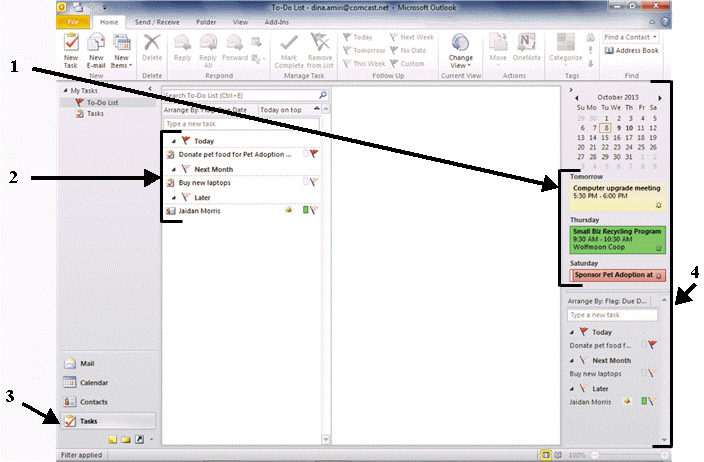 Referring to Figure OL 3-1 above, number 2 is pointing to the ____.
 (Multiple Choice)
4.8/5 (81)
(81) In the Navigation Pane, if the Notes folder button is not visible, click the ____ buttons icon, point to Add or Remove Buttons, and then select Notes in the list.
(Multiple Choice)
4.9/5 (68)
(68) To change size and view of the Notes icons, click the View tab, and then in the Arrangement group, click Large Icons, Small Icons, or ____.
(Multiple Choice)
4.9/5 (90)
(90) As with other Outlook activities, in the other groups, you can mark a task as recurring, categorize or mark it for follow-up, or identify it as ____.
(Multiple Choice)
4.7/5 (79)
(79) Depending on the current view, you can print your tasks in a table style , which looks similar to the To-Do List.
(True/False)
4.8/5 (99)
(99) FIGURE OL 3-1 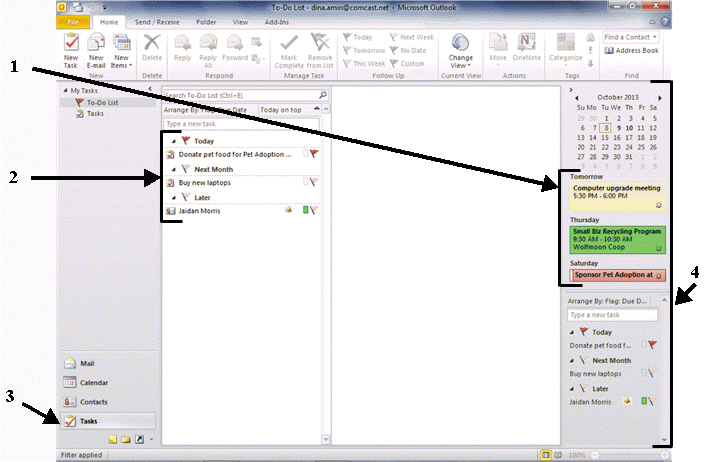 Referring to Figure OL 3-1 above, number 4 is pointing to the ____.
 (Multiple Choice)
4.8/5 (86)
(86) You can exit Outlook by clicking the ____________________ tab and then clicking Exit.
(Short Answer)
4.9/5 (76)
(76) Case OL 3-1 Liam wants to record in Outlook that he has completed several of the tasks on his to-do list. To edit a task, Liam should double-click it, make his changes, and then on the ____ tab, in the Actions group, click the Save & Close button.
(Multiple Choice)
5.0/5 (80)
(80) You can display the To-Do Bar in any view, depending on your personal preference. It appears by default in every view except Task view.
(True/False)
4.8/5 (85)
(85) Depending on the current view, you can print your tasks in a ____ style, which places each task on its own page.
(Multiple Choice)
4.9/5 (77)
(77) How do you capture your time spent on an interaction using a journal entry? Also, please give an example of why you would want to do this.
(Essay)
4.9/5 (77)
(77) To print your Tasks in the current view, on the Ribbon, click the File tab and then in Print view, click Print.
(True/False)
4.7/5 (85)
(85) Case OL 3-2 Shari is trying to concentrate on an important project and is finding the To-Do Bar distracting. Finally, Shari decides that she wants to turn off the To-Do Bar. She navigates to the Ribbon, then on the ____ tab, in the Layout group, clicks the To-Do Bar button, and then clicks Off.
(Multiple Choice)
4.8/5 (81)
(81) 
Filters
- Essay(0)
- Multiple Choice(0)
- Short Answer(0)
- True False(0)
- Matching(0)